Usage Overseas Express
Setting up plugin data
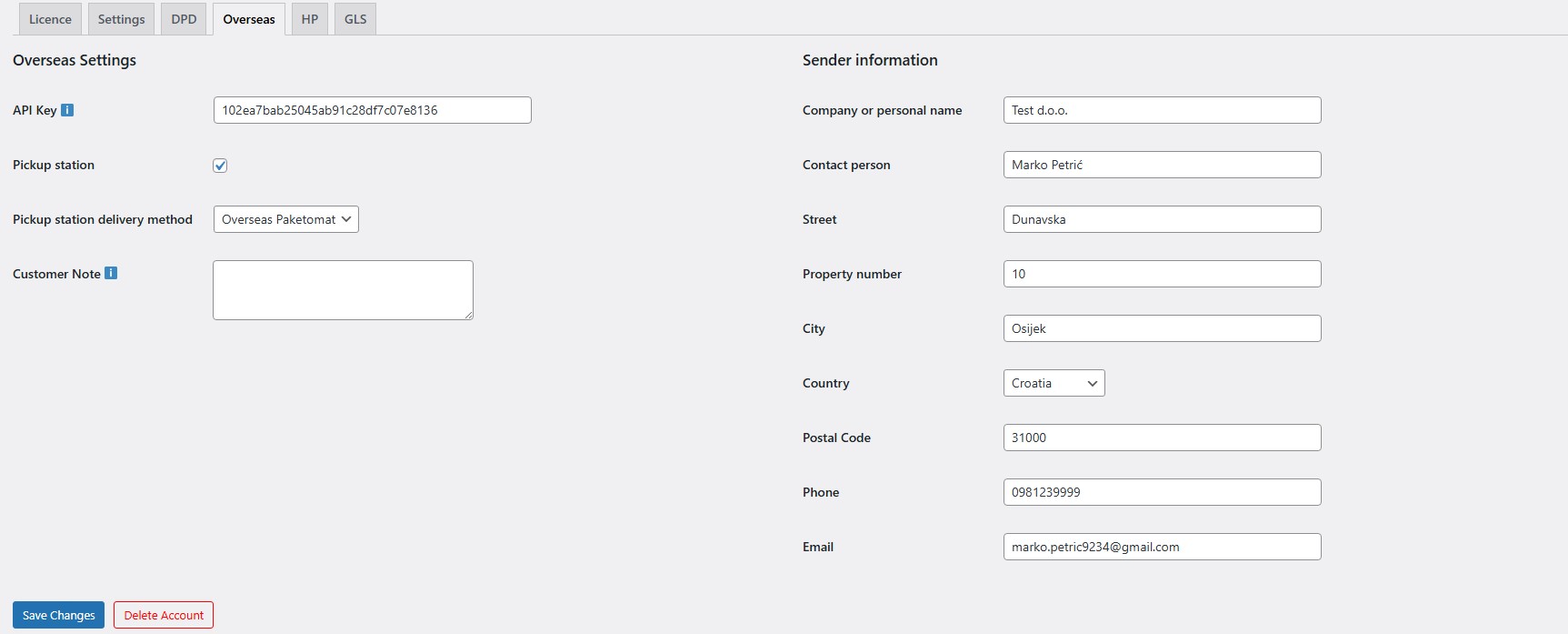
Before using the label generation feature, you need to enter the username and password you received from Overseas (Overseas administration) in the plugin settings (Overseas tab), and make sure to enter the sender details so labels can be generated correctly.
If you want to enable parcel lockers, you need to:
- enable the Parcel locker option
- create and select a shipping method (e.g. Overseas Parcel Locker) that will be used for parcel locker deliveries
Label generation
1) Open the orders list
- Click WooCommerce > Orders
2) Generate a single shipping label
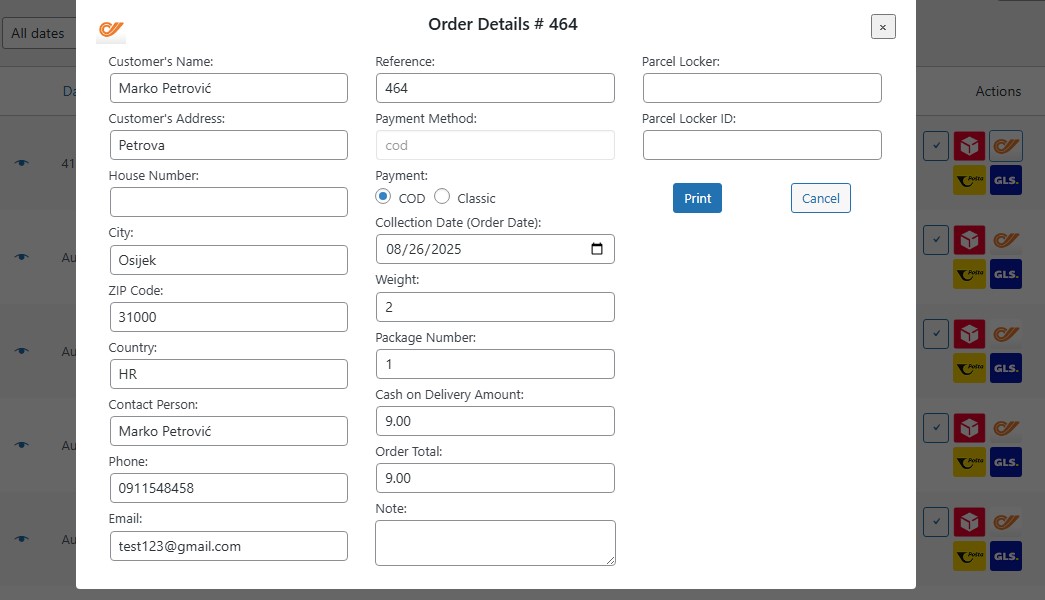
- On the order you want to generate a label for, click the orange icon with the Overseas logo
- A window will open with the shipping address and other details
- After reviewing, click Print
3) Generate multiple labels at once (bulk)
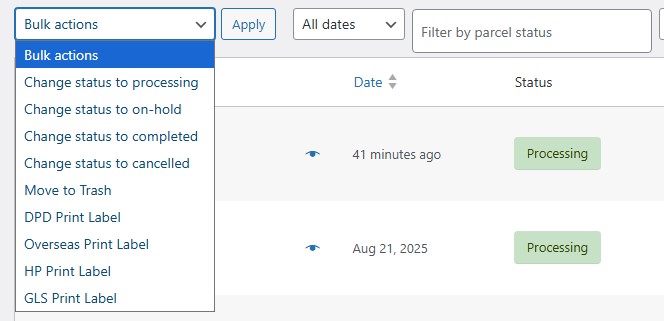
- Select the orders for which you want to generate labels
- Click Bulk actions
- Choose “Overseas Print label”
- Then click Apply
Checking delivery status on orders
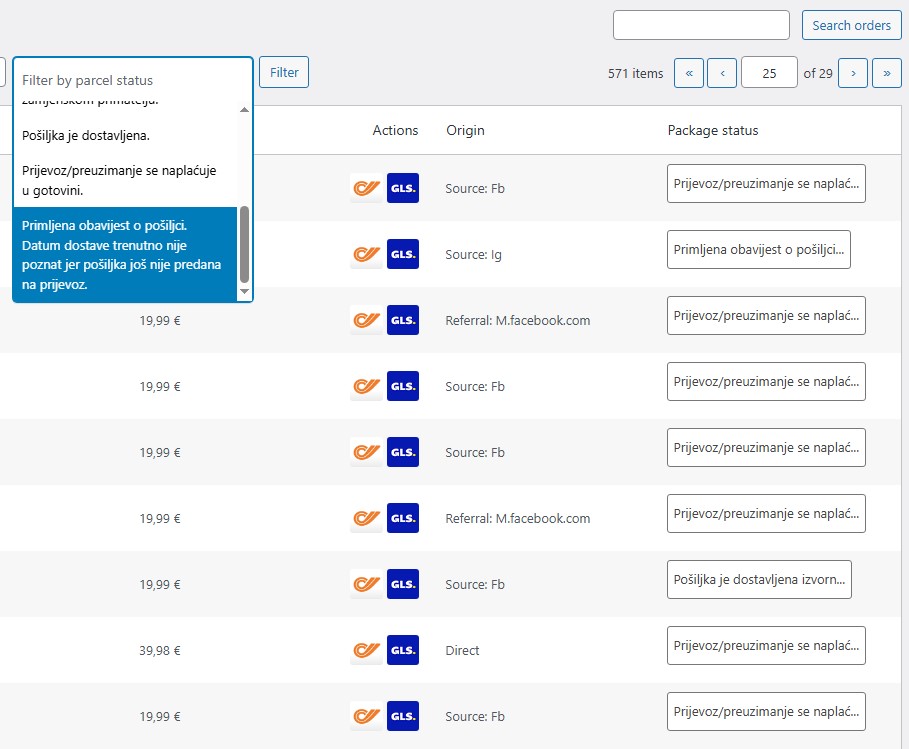
Statuses appear next to orders for which labels have been generated, and they change depending on the updates Overseas sends from their system.
- On the Orders page, you can filter by all statuses received so far.